 Daniel Awde
TopTimer.
An open-source macOS menu-bar timer and stopwatch for quick countdowns, repeatable routines and local timer history.
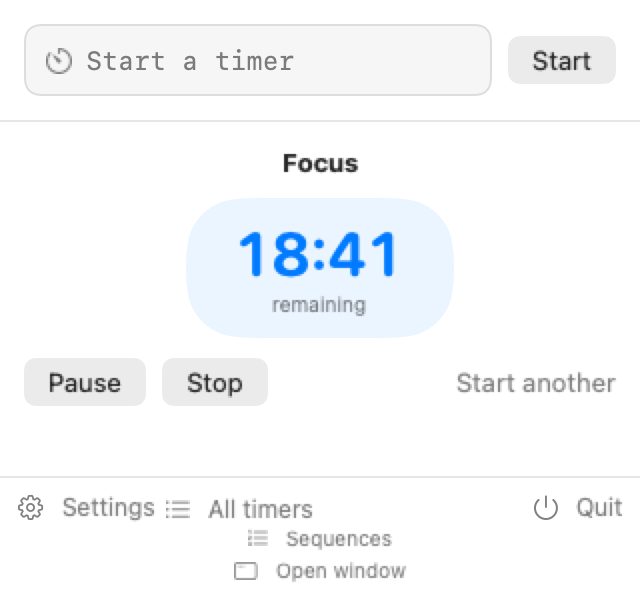
Screenshot of the native macOS app.
Try the timer
Browser demoA browser version of the countdown and stopwatch controls. For the full macOS experience, build TopTimer from GitHub. Changes stay on this page and reset when you reload.
Inside the app.
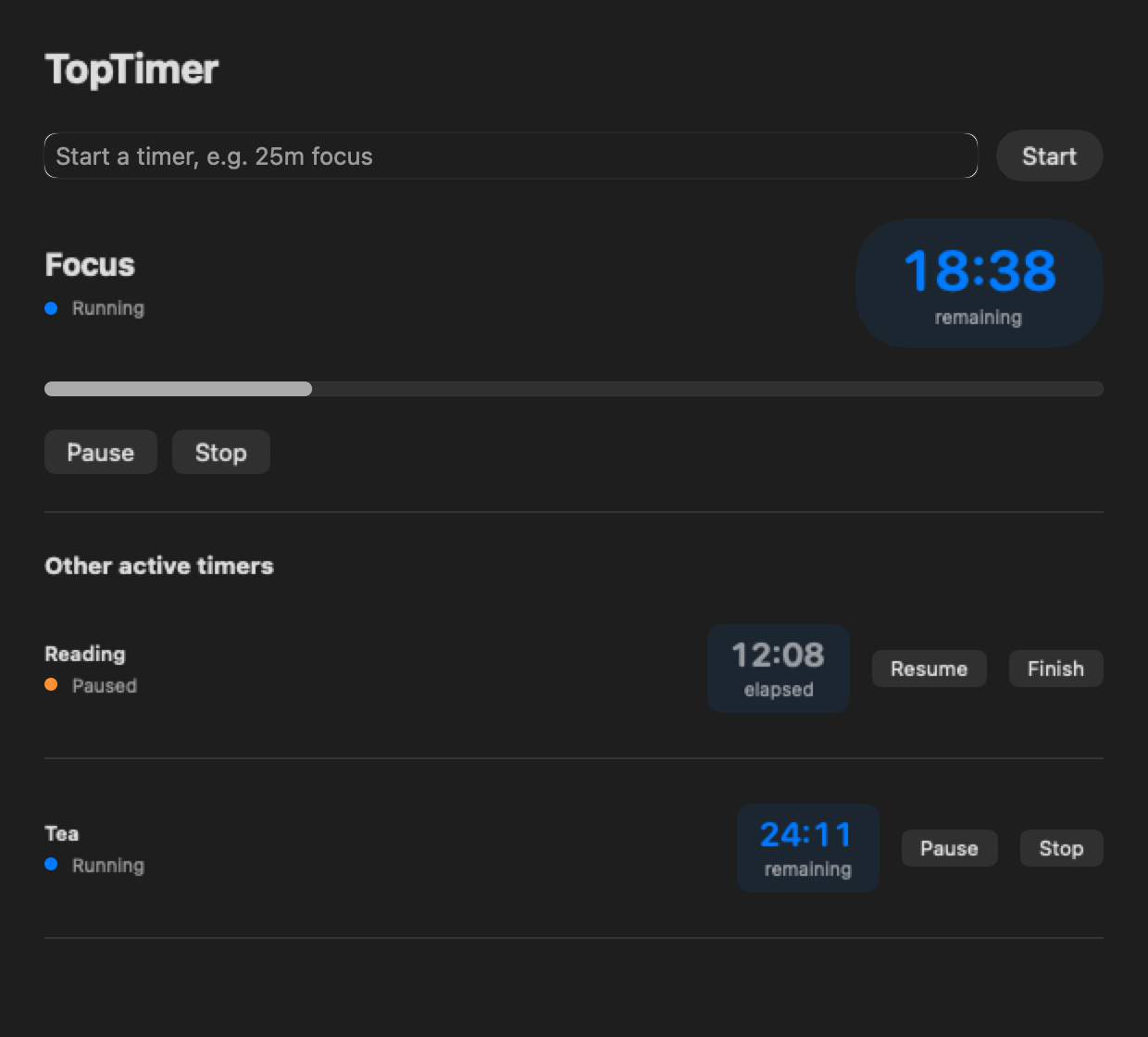
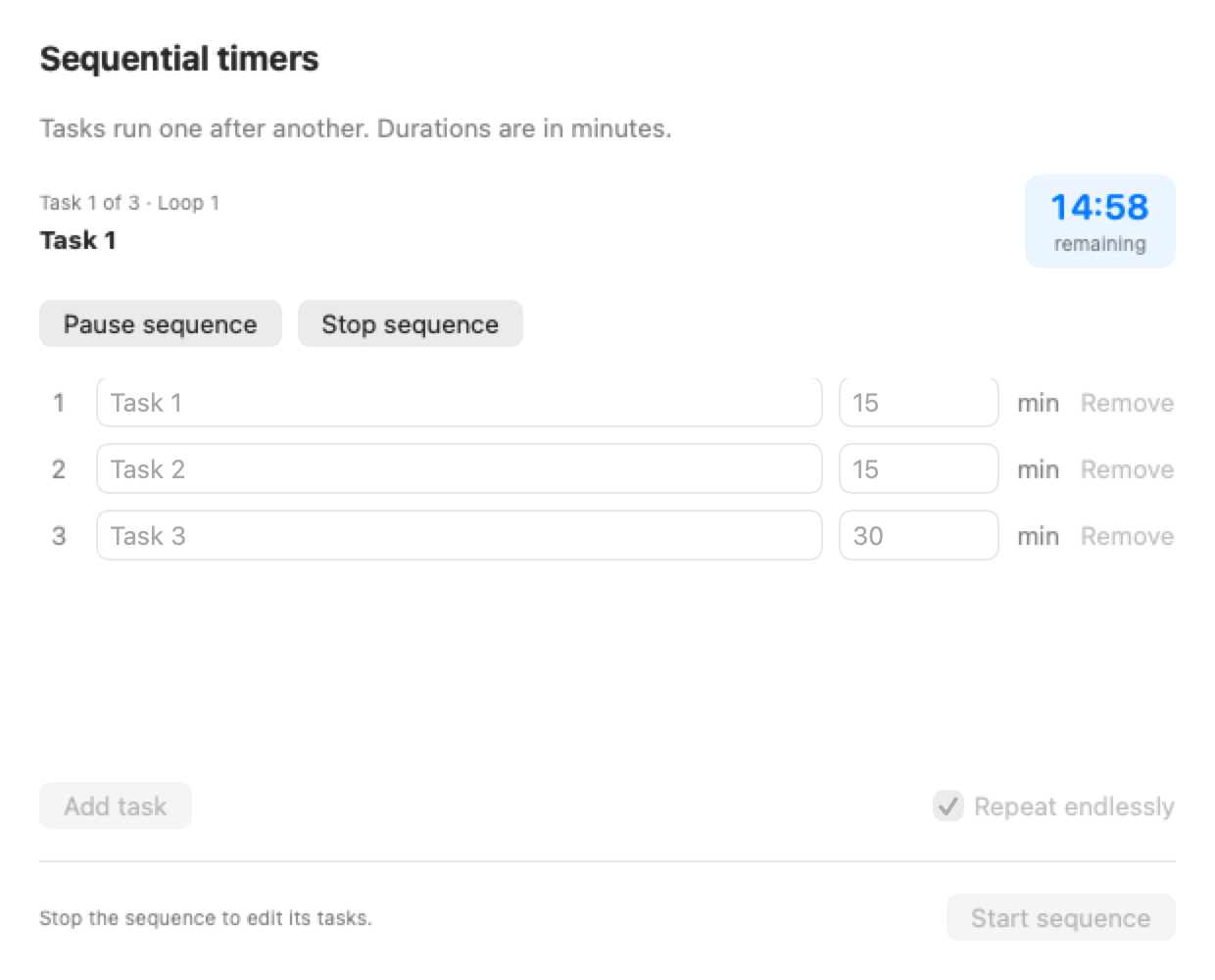
An offline macOS menu-bar timer and stopwatch.
TopTimer is a native Mac utility for countdowns, stopwatches and repeatable routines. It keeps timing controls in the menu bar, so you can check a session without switching away from your work. It suits everyday tasks such as reading, cooking, meeting breaks or a focused block of development.
I built it around a small interaction: enter a duration, give the timer a name, and start. The portfolio demo lets you try the basic controls immediately. The screenshots show the native app, where multiple timers, sequences and history make that simple starting point useful across a longer day.
Built by Daniel Awde, engineering manager and software developer in Beirut.
Decisions behind the work.
Quick countdowns without a separate workspace
Short duration commands make the menu-bar popover a practical entry point. A named countdown gives a task an end; a stopwatch records how long it takes. Pause and resume handle interruptions. Multiple timers are useful when a background task needs watching while another activity continues. The browser example focuses on one timer so visitors can learn the controls before exploring the native interface.
Routines, sequences and a useful history
The native app includes recurring timers and sequential tasks. A sequence runs one step at a time, which fits a routine with a preparation stage, a work stage and a break. History and CSV export provide a record to inspect afterwards. These are native-app features; the page demo demonstrates countdown and stopwatch behavior only.
Native on purpose, local by design
SwiftUI and AppKit connect the interface to macOS, while Core Data stores timer records locally. The code separates timer rules, persistence, system integration and presentation into distinct modules. That separation lets the timing behavior be tested apart from the menu-bar interface. No account or cloud synchronization is needed to use the native app, and it has no telemetry or analytics.
Build and inspect the Mac app
The repository documents testing, release builds and packaging with Xcode and the Swift 6 toolchain. It currently describes macOS 13.5 or later and an Apple silicon local package. Check those instructions before installing: the browser demo runs on this page, while a native app bundle needs to be built and verified on a compatible Mac.
Stack.
Frequently asked questions.
What is TopTimer?
TopTimer is an open-source macOS menu-bar timer and stopwatch. It is designed for quick, named timers that remain accessible while you work in other apps. This page includes native screenshots and a smaller browser example you can try without installing anything.
Does TopTimer work offline?
Yes. The native app runs offline and keeps its timer, preset, settings and history data on your Mac. It does not require an account. The browser example is separate: its temporary state disappears when you reload this page.
Can I use it for work sessions and breaks?
You can use countdowns for a work session or break and a stopwatch for an activity without a fixed duration. The native app also supports recurring timers and sequences. The demo offers one-minute, five-minute and twenty-five-minute countdown presets, plus a custom duration.
Which Macs can run TopTimer?
The current repository instructions specify macOS 13.5 or later. The documented local app package is Apple silicon only; an Intel binary is not claimed. Building requires Xcode with the Swift 6 toolchain. The repository is the source for current compatibility and packaging instructions.
What can I try in the browser demo?
Choose Countdown or Stopwatch. For a countdown, enter seconds or choose a preset, then start, pause and resume. Reset returns the display to the chosen duration. The example does not install a menu-bar item or reproduce native notifications, recurring schedules or saved history.
Explore the project.
Repository and setup instructions ↗